

Connect
1
Open the Data & MCP page
In Oppin, click Data & MCP in the sidebar. The MCP tab opens first.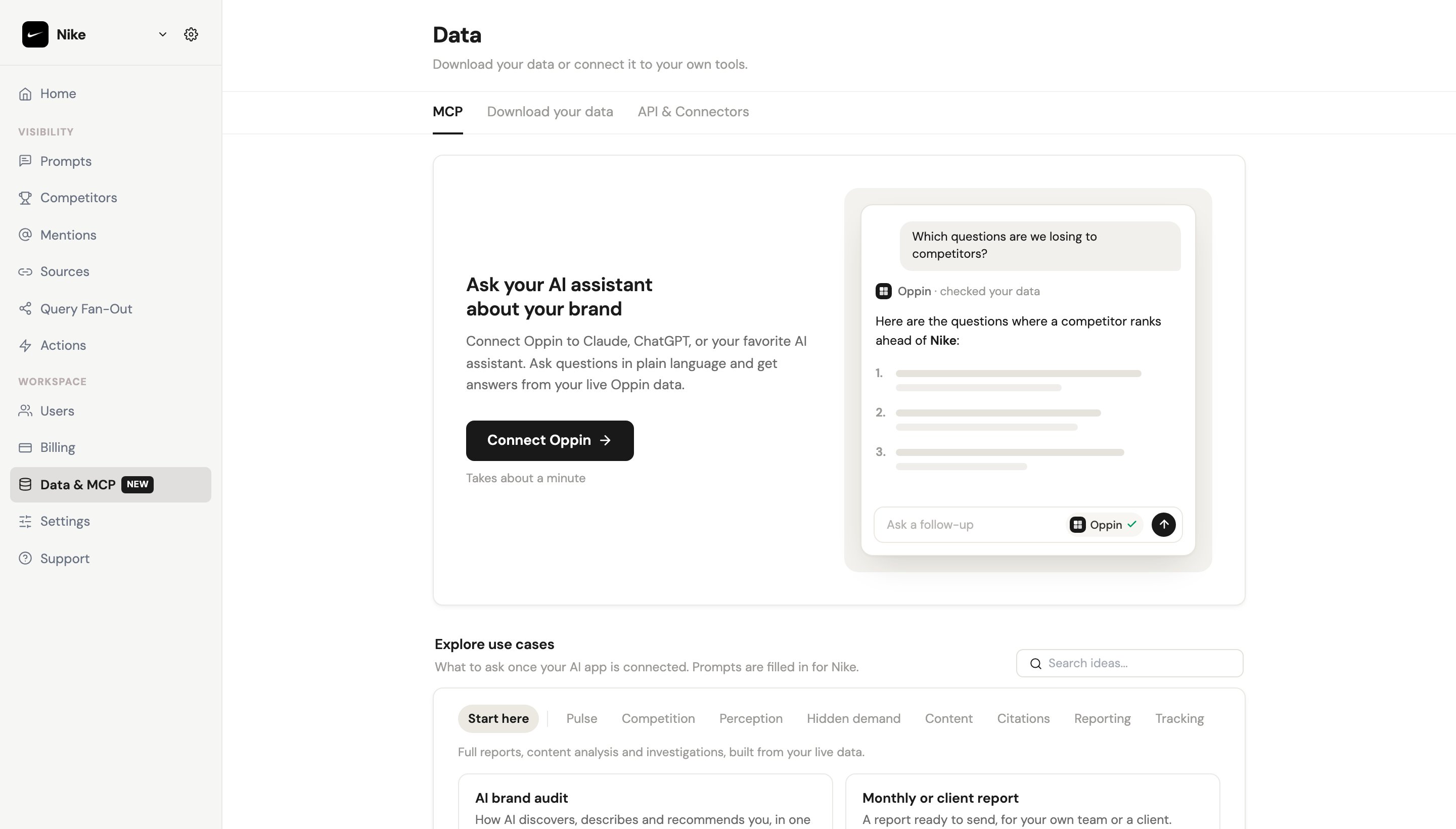
2
Pick your app
Click Connect Oppin and pick the app you use. Each one shows its own steps: a one-click button where the app has one, a command to copy for terminal tools, or the address to paste.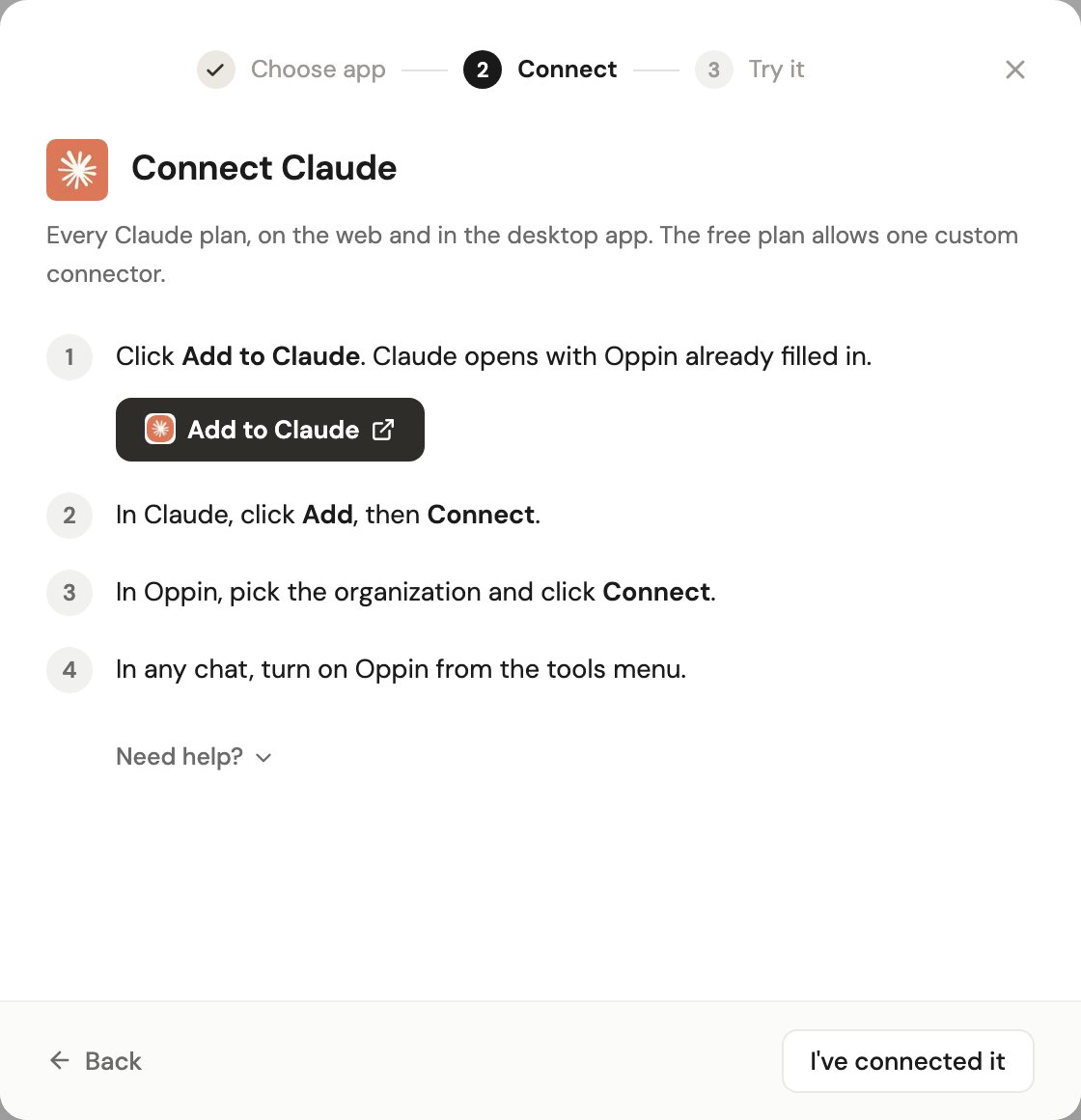
3
Approve access in Oppin
Every app sends you to Oppin to approve. Choose the organization and see what the connection will be able to do: read your data and, when your app asks for it, change what you track. Members with view-only access connect read-only.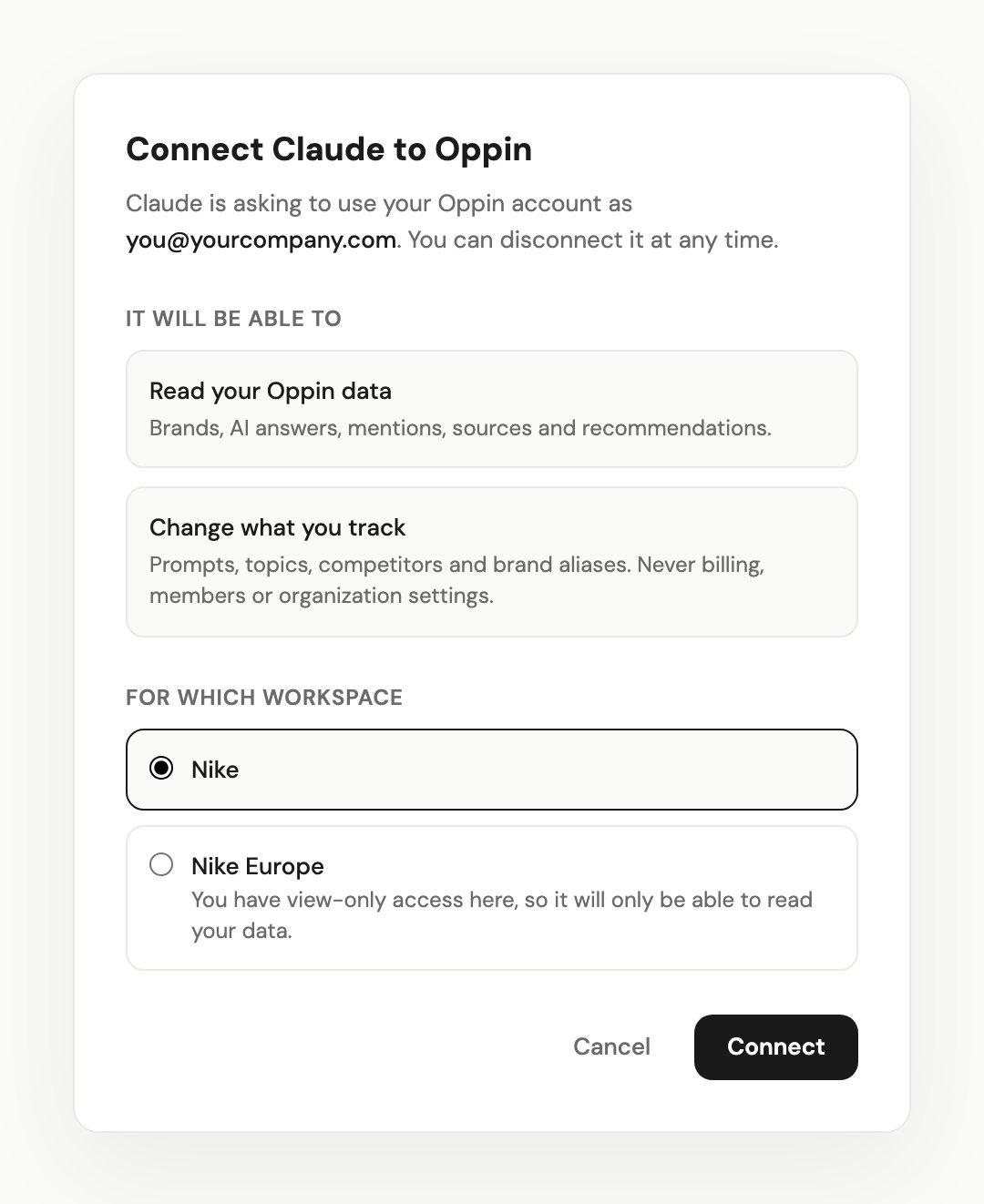
4
Ask away
Start a new chat in your app and turn Oppin on if it asks. Then try: Using Oppin, how visible are we in AI answers right now?
Authorization: Bearer <key>. A key created with read and write access can change tracking; a read-only key cannot.
What it can do
With write access it can add, edit, stop and delete prompts, switch AI assistants on or off for them, create, rename and remove topics and move prompts between them, tag prompts, have Oppin draft new prompts for your review, add and edit competitors, add the other names AI uses for your brand, update your brand’s profile, and mark recommendations done or dismissed. A workspace admin’s connection (or a write API key) can also add a new brand, within your plan’s brand limit. It never reaches billing, members or API keys.
New prompts are answered within minutes, so you see results in the same conversation. If you add a very large batch at once, some wait for the next daily run; the tool’s reply says how many.
Ready-made commands
Oppin ships commands that run a fixed, tested analysis in one step: a weekly pulse, a competitor radar, a content brief, a full brand audit and more. Each can return its result as text, an interactive page, a PDF or slides. Start with Ideas (oppin_ideas), which lists things to try.
Access and safety
- You see the access before you approve. The approval page lists what the connection gets: reading your data, and changing what you track when your app asks for it. Members with view-only access always connect read-only.
- Nothing changes without your yes. Your AI app lists the changes before it makes them, and prompts can only be deleted after they are stopped, so their history is kept.
- Every change is logged, and most can be undone. The Data page lists what each connected app changed, with an Undo button, and your app can undo a change too (“undo that”). An undo is refused when someone edited the same thing again since, so it never overwrites later work.
- A connection belongs to the person who approved it. If they leave the organization or lose access, it stops working.
- Disconnect any time. In Oppin, open Data & MCP (the MCP tab) and find it under Connected applications. Admins see and can disconnect every connection in the organization. See Troubleshooting.
Good to know
- Answers are collected once a day. A 48-hour window holds few answers, so a trend over a day or two is thin.
- One connection reads one organization. Agencies that keep each client as a brand in one organization can ask across all of them.
- Oppin does not send alerts or run on a schedule. For a daily check, use your AI app’s scheduled tasks.
- Query fan-out comes from the engines that expose it: ChatGPT, Perplexity and Claude.
Use cases
Prompts to paste, from a two-minute pulse to a full brand audit.
Commands
The ready-made analyses and their options.
Tools
Every tool your app can call, with its arguments.
Troubleshooting
When the app does not use Oppin, cannot change anything, or disagrees with the dashboard.